

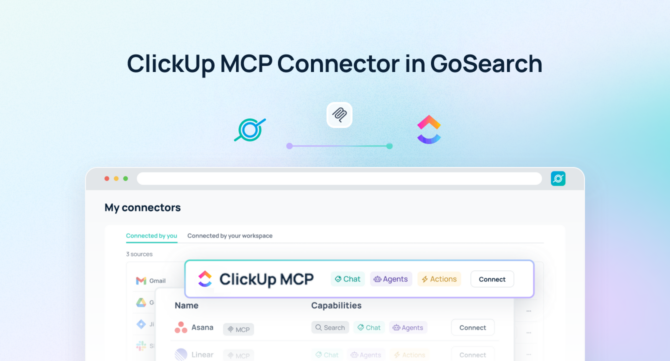

Quick Answer: A ClickUp MCP server is a Model Context Protocol endpoint that gives AI agents real-time, permission-aware access to ClickUp Spaces, Folders, Lists, Tasks, Docs, Whiteboards, and time-tracking data. With GoSearch, teams deploy a ClickUp MCP server to query and act on project data using natural language, roll ClickUp task status into cross-tool reporting, and automate work across the rest of the enterprise stack, without exporting data or building a custom integration.
ClickUp is where the actual work lives: Sprints, custom statuses, multiple assignees, dependency chains, Docs, Whiteboards, Goals. But that structure is also what makes ClickUp hard to query casually. Knowing whether the Q3 launch is on track means knowing which Space it’s in, which List, which custom field tracks blocker status, and who the current assignee is. Most people don’t remember that path. They just want the answer.
A ClickUp MCP server removes that lookup step. AI agents query ClickUp’s data model directly, resolve the Space/Folder/List hierarchy on their own, and surface the answer, or take the next action, without a human navigating the UI first.
What Is a ClickUp MCP Server?
A ClickUp MCP server is a Model Context Protocol endpoint that exposes ClickUp’s workspace data (tasks, subtasks, checklists, custom fields, comments, Docs, time entries, Goals, and dependency relationships) to AI agents as structured, callable tools.
Model Context Protocol is an open standard for connecting AI systems to external data sources and tools. Instead of an agent guessing at ClickUp’s REST API or a developer hand-building a connector, MCP gives the agent a consistent interface: list the tools available, call the one it needs, get structured data back. For ClickUp specifically, that means an agent can resolve “the Q3 launch” to the correct Space and List, pull every task inside it, read the custom fields tracking blocker status, and check dependency chains, all from a single natural-language prompt.
GoSearch’s ClickUp MCP server goes beyond read access. Agents can create tasks, update status and custom fields, reassign work, log time, and resolve dependencies, then carry that context into workflows across 100+ other connected tools in the same execution. Setup takes under 5 minutes. GoSearch inherits each user’s existing ClickUp permissions at query time, so there’s no separate access model to maintain and no data copied outside ClickUp.
Click MCP Server Use Cases
Connecting ClickUp via MCP unlocks use cases across the full lifecycle of a project, from planning through status reporting.
- Sprint and task status retrieval. Teams no longer need to open a Board or Gantt view to know where things stand. An agent can answer “what’s the status of the mobile app Sprint” directly, pulling task counts by status, flagging overdue items, and reading custom fields that track blocker reasons, grounded in the live state of the workspace.
- Dependency and blocker surfacing. Sprint velocity usually stalls on one or two blocked tasks buried in a dependency chain. An agent can trace those chains across Spaces and Folders, identify what’s actually holding up a release, and surface it before it becomes a standup surprise.
- Cross-tool executive reporting. Status updates typically mean manually copying ClickUp data into a slide or email. With GoSearch, an agent rolls up ClickUp task and Goal progress alongside Salesforce pipeline data and Slack conversation context into a single report, generated on demand instead of assembled by hand.
- Automated task creation and routing. New work often originates outside ClickUp, a closed-won deal in Salesforce, an escalated support ticket, a flagged Slack message. Agents can create the resulting ClickUp task in the correct Space, List, and assignee automatically, based on rules tied to the triggering event.
- Time tracking and utilization queries. Rather than building a custom ClickUp report, teams can ask directly for logged hours by person, project, or client across Spaces, with the answer pulled from live time-tracking data.
- Docs and Whiteboard context retrieval. Task titles rarely tell the whole story. An agent can pull the ClickUp Doc or Whiteboard linked to a task so it answers questions using the actual spec or brainstorm, not just a one-line summary.
ClickUp’s Native MCP Server vs. GoSearch’s ClickUp MCP Server
ClickUp ships its own official MCP server (currently in public beta, available on all plans, at mcp.clickup.com). It connects a single AI client, like Claude Desktop, Cursor, or ChatGPT, to a single ClickUp workspace. Inside that connection, an agent can orchestrate task workflows, build status reports, and track time.
That’s a real capability, and it’s a fine starting point for an individual using ClickUp inside one AI tool. The limitation shows up at the team and workflow level: the native server only knows about ClickUp. It can’t tell you that the blocker on a task was actually resolved in a Slack thread, or that the task is tied to a Salesforce opportunity closing this week, or that the spec referenced in the task description lives in a Google Doc that’s since been updated.
| ClickUp Native MCP Server | GoSearch ClickUp MCP Server | |
|---|---|---|
| Scope | Single ClickUp workspace | ClickUp plus 100+ connected tools (Slack, Salesforce, Google Drive, Jira, Confluence, and more) |
| Client | One AI client at a time (e.g., Claude Desktop) | Any GoSearch-connected surface, shared across the org |
| Write access | Yes, within ClickUp | Yes, within ClickUp and across connected systems in one execution |
| Permissions | ClickUp workspace permissions | Inherited automatically from ClickUp at query time, no separate config |
| Cross-tool context | No | Yes, agents correlate ClickUp data with other systems in a single answer |
| Setup | Manual client configuration | Under 5 minutes |
GoSearch’s ClickUp MCP server is built for the version of the question people actually ask, which is rarely “what does this ClickUp task say” in isolation. It’s “why is this late, who’s blocking it, and what do I need to do next,” where the answer spans ClickUp, Slack, email, and the CRM.
Security and Permissions
Because GoSearch’s ClickUp MCP server enforces ClickUp’s existing workspace and role-based permissions, AI agents only ever access the Spaces, Folders, Lists, tasks, and Docs a given user is already authorized to see inside ClickUp. There’s no separate permission model to configure, and no risk of an agent surfacing a task or Doc the requesting user couldn’t otherwise open.
This matters more as ClickUp workspaces grow. Guest access, private Spaces, and restricted Lists are common in larger accounts, and permission enforcement has to hold at every layer, not just at the workspace level. GoSearch checks permissions at query time, on every request, so access stays accurate even as roles and Space membership change.
Because access is enforced live against ClickUp rather than against a static, periodically-synced copy, there’s also nothing to keep in sync. If a user loses access to a List in ClickUp, that change takes effect for GoSearch immediately, with no reindexing step in between.
How GoSearch’s ClickUp MCP Server Works
GoSearch connects to ClickUp through the MCP standard and resolves the Space, Folder, and List hierarchy automatically, so a user doesn’t need to know exactly where a task lives to ask about it. Permissions are inherited from ClickUp at query time: an agent only ever surfaces tasks, Docs, and comments the requesting user could already see inside ClickUp itself. There’s no separate index to keep in sync and no permission drift between systems.
Once connected, ClickUp becomes one node in GoSearch’s broader orchestration layer rather than an isolated silo. A single agent execution can pull ClickUp task and dependency data, cross-reference it against Slack or Salesforce, and take action, like updating a custom field or reassigning a task, in one pass.
How to Connect ClickUp to GoSearch
Connecting ClickUp takes a few minutes and doesn’t require a developer:
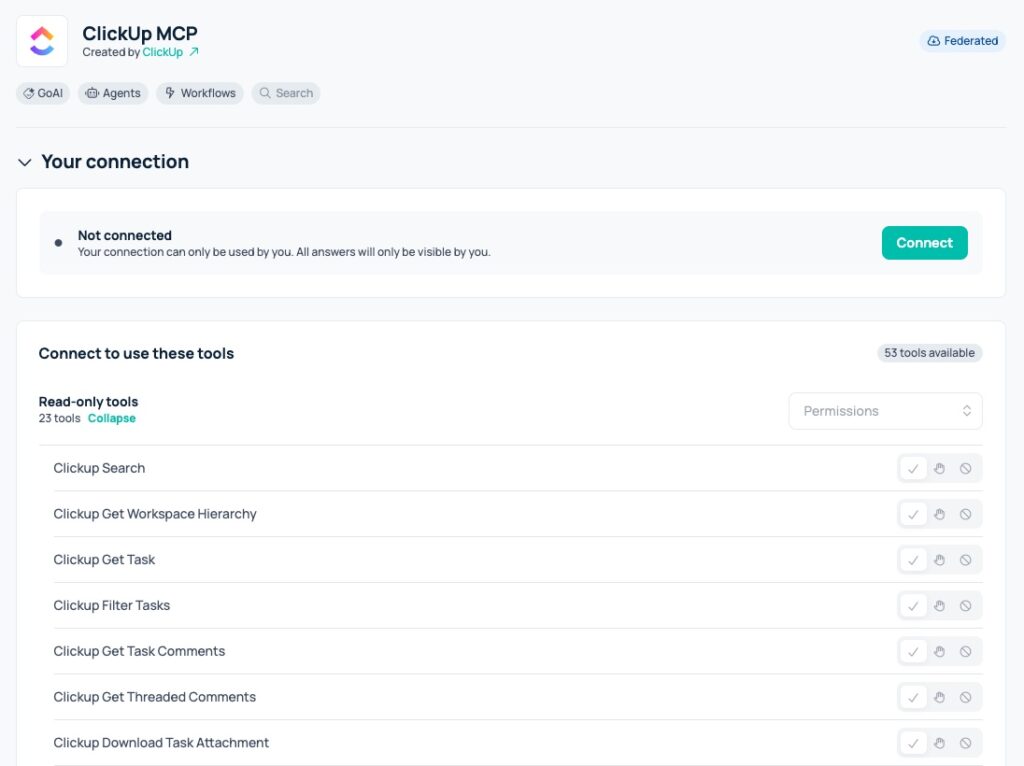
- Navigate to GoSearch’s connector library and select ClickUp from the integrations panel.
- Authenticate via OAuth using your ClickUp workspace credentials. GoSearch requests the scopes needed to read and act on tasks, Docs, comments, custom fields, and time entries, no separate ClickUp API key or app registration required.
- GoSearch inherits your existing ClickUp permissions automatically. There’s no need to rebuild access rules, recreate workspace roles, or manually map users.
- ClickUp becomes immediately callable. No indexing, syncing, or data duplication step runs in the background. Agents and workflows in GoSearch can query and act on live ClickUp data as soon as the connection completes.
From there, ClickUp behaves like any other connector in GoSearch: available to every agent and workflow, correlated automatically with the other 100+ tools your team has connected, and governed by the same permission model your team already trusts.
Why Teams Use GoSearch to Connect ClickUp
ClickUp is one connector. The value of connecting it through GoSearch comes from what it’s connected to.
- Search is the floor, agents are the ceiling. Most enterprise search tools stop at finding the right task or document. GoSearch treats that as the starting point, not the destination. Once an agent can find the ClickUp task, it can also update it, route it, escalate it, and correlate it with what’s happening in Slack, Salesforce, or Google Drive, all in the same execution. ClickUp stops being a place people check and becomes a system agents actively work inside.
- One platform, 100+ systems, no per-tool tradeoffs. Every connector GoSearch supports, ClickUp included, plugs into the same permission model, the same agent runtime, and the same natural-language interface. Teams aren’t stitching together a different AI experience for every tool in their stack. They’re extending one system further.
- Built for every employee, not just the technical ones. A lot of MCP tooling today assumes the user is a developer comfortable configuring clients and managing API tokens. GoSearch is built so a project manager, an ops lead, or a support rep gets the same natural-language access to ClickUp that an engineer would get from a native MCP client, with none of the setup overhead.
- Permission-aware by default, not by configuration. GoSearch doesn’t ask teams to rebuild access control for AI. It inherits what ClickUp, and every other connected system, already enforces. That means rolling out agentic workflows doesn’t come with a parallel security review for every new connector.
- Setup measured in minutes, not sprints. Connecting ClickUp, or any other tool in GoSearch’s library, is a five-minute OAuth flow, not a development project. Teams get to the point of asking real questions the same day they connect the tool.
See our complete list of connectors here. Curious how GoSearch could work in your enterprise environment? Sign up for free or schedule a demo today.
Search across all your apps for instant AI answers with GoSearch
Schedule a demo
ClickUp MCP Frequently Asked Questions (FAQs)
It lets AI agents read and act on ClickUp data, tasks, Docs, time entries, custom fields, and dependencies, using natural language, and combine that with data from other connected tools instead of querying ClickUp in isolation.
No. ClickUp’s native MCP server connects one AI client to one ClickUp workspace. GoSearch’s ClickUp MCP server connects ClickUp to 100+ other enterprise tools and lets agents act across all of them in a single workflow, with permissions inherited automatically.
ClickUp’s native MCP server is available on all ClickUp plans at no additional cost, and is currently in public beta. GoSearch’s ClickUp MCP connector is included as part of a GoSearch deployment.
Yes, with GoSearch. Because ClickUp is one of 100+ connectors, an agent can pull ClickUp task status alongside Slack conversation context, Salesforce opportunity data, or Jira issues in a single response.
Ready to connect ClickUp to your AI stack? Book a demo to see GoSearch’s ClickUp MCP server in action.