

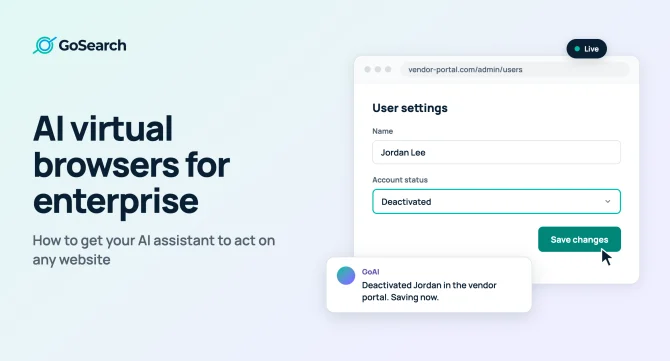

Your AI assistant can summarize a contract, answer a benefits question and file a ticket in Jira. Ask it to change a setting in a vendor’s admin portal, though, and it hits a wall. The portal has no API, so the assistant has no way in.
AI virtual browsers remove that wall. This guide explains what they are, how they work with the integrations you already have, and how IT and engineering teams can roll them out safely.
Quick answer: An AI virtual browser lets your company’s AI assistant act on websites and web apps that have no API or integration. The assistant opens a secure browser in the cloud, then clicks, types and fills out forms the way an employee would.
Key takeaways
- AI virtual browsers allow agents to navigate vendor portals, admin consoles, internal tools, and staging sites, including systems without a direct integration.
- APIs and MCP tools are still the preferred way to interact with connected systems. Browser access covers the tools that don’t offer those options.
- Employees should sign in themselves, so the agent never sees a password.
- Good first tasks repeat often and are easy to check, such as offboarding, license audits, bug reproduction and invoice downloads.
- Enterprises should require isolated sessions, live views, action summaries and admin controls.
- GoSearch’s AI assistant, GoAI, includes a virtual browser alongside its MCP tools and workflows.
Why your AI assistant stalls at the browser
Most workplace AI assistants can now do more than answer questions. Connected to your apps through APIs and MCP tools, they create tickets, update records and run workflows. But they stop at the edge of their integrations.
Integrations don’t cover every system employees use. IT may need to change permissions in a SaaS admin console, while support and finance teams work in vendor portals with no API access. Engineers also rely on staging sites that aren’t connected to their other tools.
When an assistant can’t access these systems, someone still has to do the work manually. They move between tabs, copy information, and repeat the same steps each week. Some teams build scripts to handle it, but those can stop working when a page changes. A virtual browser gives the assistant a way to work in these systems, too.
What is an AI virtual browser?
An AI virtual browser is a real web browser that runs in the cloud and that an AI agent controls. You give the agent a goal in plain language, and it operates websites to reach it. People also call it a cloud browser, a browser agent or an AI agent browser.
Unlike older automation tools such as Selenium, nobody writes a script. The agent reads each page as it is right now and decides what to do next, so it handles sites it has never seen. That makes it practical for the long tail of tools your team uses only now and then.
How an AI assistant uses a virtual browser alongside its integrations
The best setup treats the browser as one more way for your assistant to act, not a separate tool. When an API or MCP tool can do the job, the assistant should use it, since integrations are faster, cheaper and more predictable. When no integration exists, it opens a browser instead.
In the browser, the agent works in a loop. It reads the page through screenshots, the page’s structure or both, then takes one action, such as a click, a typed value or a file upload. It checks the result and repeats until it finishes the task.
Some steps still need a person, and logins are the most common. A well-designed agent pauses at the sign-in page and hands control to the employee. Once they log in, the agent picks up where it left off and reports back when it’s done.
Context matters as much as clicks. An assistant connected to your company’s docs and tools already knows which vendor you use, which account to pick and which process to follow. A standalone browser agent has to be told all of that every time.
Worked example: the virtual browser in GoSearch
GoSearch is an enterprise AI search and agent platform. Its AI assistant, GoAI, includes a virtual browser that takes action on any website for you. You ask GoAI to do something, and it opens a secure cloud browser and does the work.
GoAI already takes action through MCP tools and workflows across the apps your team connects. The virtual browser extends that reach to websites and web apps with no API or integration. That covers vendor portals, admin consoles, internal tools and staging environments.
From request to result
You start by describing the task in plain language, and you can attach files if the task needs them. GoAI then opens a virtual browser and works through the site like a person would. It navigates, clicks, types and fills out forms.
When GoAI reaches a sign-in page, it stops so you can log in. It then continues from that point. You can watch the browser as it works or let the task run in the background and check the summary afterward.
See it in action
In the demo below, GoAI files a high-priority SSO ticket in a vendor support portal. Next, it updates user access levels in an admin console from an attached spreadsheet. Finally, it tests a new signup and onboarding flow on staging, finds a bug and reports it.
Teams use the GoSearch virtual browser for repetitive web tasks, IT admin work, support tickets, user provisioning and QA testing. None of it requires writing scripts or building integrations.
What enterprise teams use AI virtual browsers for
Virtual browsers fit repetitive, multi-step tasks that live in a web UI. The best candidates are too irregular to script but too tedious to keep doing by hand.
IT and security
Offboarding is a common starting point. An agent can remove a departing employee from SaaS apps that don’t support SCIM, then confirm it freed their licenses. Before a renewal, it can log into each admin console and compare seats purchased with seats in use.
Audits are another good fit. An agent can capture screenshots of MFA and password policy settings across tools as SOC 2 or ISO 27001 evidence. It can also check warranty status for a batch of laptop serial numbers on a manufacturer’s support site.
Engineering and DevOps
Engineers can hand off bug reproduction. Give the agent a customer’s steps, and it follows them on a preview build to confirm whether the error happens. Before a release, it can click through a preview deploy and flag broken links, missing images or console errors.
Agents also help with small configuration and reporting chores. One example is adding a DNS record in a domain registrar’s dashboard. Another is pulling usage or cost breakdowns from cloud and monitoring vendors’ billing pages.
Finance, HR, support, marketing and sales
The same pattern shows up across the business. Finance teams can have an agent download monthly invoices from vendor portals and file them. HR teams can enter a new hire’s details into a benefits or payroll portal from their onboarding form.
Support reps can check order or RMA details in a partner portal without leaving the ticket. Marketers can make updates to company profiles across partner directories and review sites. Sales teams can fill out vendor registration forms using pre-approved company information.
Security and admin controls for enterprise virtual browsers
An agent that can click anything an employee can click can also make an employee’s mistakes, or get tricked. Enterprise teams should understand the risks before rollout and require controls that address each one.
The main risks
Credential handling is one concern. Giving an agent access to passwords or session cookies creates another way for those credentials to be exposed. Prompt injection is another risk. A page can contain hidden instructions designed to change what the agent does, including attempts to make it export data. OWASP lists prompt injection among the leading risks for AI agents.
Mistakes matter too. An agent can misread a page and click the wrong button, which hurts most with deletes, payments and permission changes. Pages, screenshots and files also pass through the provider’s infrastructure, so data handling matters.
Controls to require
Each task should run in an isolated cloud session that gets cleared when the work is done. Employees should sign in through the company’s usual SSO process rather than sharing passwords with the agent.
Employees also need a way to see what the agent is doing. Look for live browser access, along with logs or summaries they can review afterward. If an action could be difficult to reverse, the agent should stop for approval.
IT should be able to set who has access to the browser and how session data is handled. Admin controls, clear retention policies, and certifications such as SOC 2 are worth checking before rollout.
How to roll out a virtual browser at work
Pick a team like IT or engineering and identify the web tasks they handle regularly in systems that aren’t connected through integrations. Look for work with a consistent process and an outcome that’s straightforward to verify.
Have someone watch the agent handle these tasks at first. Keep track of where it needs help, whether that’s signing in or dealing with an unfamiliar page. Once it handles a task consistently, let it run in the background and check the summaries instead.
Then expand. Share what worked with other teams, since finance, HR, support and sales all have their own portals. Keep using integrations for high-volume jobs, and save the browser for the long tail.
How to evaluate an AI virtual browser for your team
For IT and engineering teams, ask these questions before a roll out.
| Question | Why it matters |
| Does each task run in an isolated cloud session? | It keeps the agent apart from employees’ browsers, devices and personal sessions |
| How does it handle sign-in? | People should log in themselves, so the agent never stores or sees passwords |
| Can you watch it live and review it later? | Live views and summaries let you verify every action |
| Does it accept files? | Real tasks often start from a spreadsheet, screenshot or log |
| Does it work with your integrations? | The agent should call an API when one exists and use the browser only when needed |
| Does it know your company’s context? | It needs to know which vendor, account or process applies |
| What admin and compliance controls come with it? | IT needs settings, retention policies and certifications before approving a rollout |
Standalone browser tools answer some of these questions. AI assistants built into a workplace platform tend to cover the last three, because they already connect to your apps and knowledge.
Limitations of AI virtual browsers
Virtual browsers can reach systems that APIs can’t, but that access comes with trade-offs. An agent has to read and interact with a page at each step, which takes longer than an API call. Someone familiar with the site may also be able to finish the same task faster.
Longer tasks also consume more compute, since the model has to interpret the page at each step. CAPTCHAs, bot detection, and some multi-factor authentication flows can also interrupt the process and require someone to take over.
Agents can also struggle with unfamiliar layouts or complicated interfaces. Their work needs to be checked, particularly during initial testing. If a task runs at high volume every day, building a direct integration is usually a better investment.
Get more done with an AI assistant that can use the web
Integrations let an AI assistant act in the apps your team connects. An AI virtual browser covers everything else: the vendor portals, admin consoles, internal tools and staging sites where work still happens by hand. With employee sign-in, live views, action summaries and admin controls in place, IT and engineering teams can roll one out safely. Start with a few repetitive, easy-to-check tasks, then expand to other teams.
GoSearch brings both approaches together in one assistant. GoAI takes action through MCP tools and workflows, and opens a virtual browser when no integration exists. Get a demo of GoSearch to see how the virtual browser works with your team’s own tools.
Search across all your apps for instant AI answers with GoSearch
Schedule a demo
FAQ
How do I get my AI assistant to do more at work?
Give it two ways to take action. First, connect it to the apps your team uses, so it can create tickets, update records and run workflows through APIs and MCP tools. Second, add a virtual browser, so it can also work in the portals, admin consoles and internal tools those integrations don’t reach. Together, these let the assistant finish tasks end to end instead of stopping at the edge of its integrations.
What is an AI virtual browser used for in the enterprise?
Enterprises use AI virtual browsers for repetitive web tasks in tools without an API. IT teams use them for offboarding, license audits and compliance evidence. Engineering teams use them to reproduce bugs and check preview deploys. Finance, HR, support and sales teams use them for vendor portals, payroll and benefits systems, partner portals and prospect questionnaires. The common thread is work that’s too irregular to script but too tedious to keep doing by hand.
Are AI virtual browsers safe for enterprise use?
They can be, with the right safeguards. First, tasks should run in isolated cloud sessions that are cleared afterward. Rather than sharing credentials with the agent, employees should handle sign-in through SSO. Visibility into what the agent is doing, both while it works and after it finishes, is essential. IT should be able to manage access, and the provider should document its data retention practices and hold relevant certifications, such as SOC 2.
What is the difference between a virtual browser and a cloud browser?
In AI, there’s usually no difference. Both terms describe a real web browser that runs on remote servers and that an AI agent controls. “Cloud browser” emphasizes where the browser runs. “Virtual browser” emphasizes that each task gets its own isolated session, separate from the employee’s computer. Vendors and articles use both terms, along with “browser agent” and “AI agent browser,” for the same idea.
Is a cloud browser the same as a headless browser?
Not quite. A headless browser runs without a visible window, and a script that a developer writes in advance controls every step. Teams use headless browsers for automated testing and scraping. In an AI cloud browser, the agent decides each step by reading the page, so nobody writes a script. AI cloud browsers also often include a live view, so people can watch the agent work and step in when needed.
What is the difference between an AI browser and an AI browser agent?
An AI browser is a browser you use on your own device with AI built in, such as Perplexity Comet or ChatGPT Atlas. It helps you while you browse. An AI browser agent operates a browser for you, often in a separate cloud session, to complete a task on its own. For work tasks, the agent approach keeps automation separate from employees’ personal browsing and lets IT manage it centrally.
Can AI agents log into websites?
Yes. When a task requires authentication, the agent can get as far as the login screen, then let the employee take over. Employees sign in using the site’s normal process, including any MFA requirements, then return control to the agent. The agent can continue in the authenticated session without being given the employee’s credentials.
Do AI virtual browsers replace Selenium and Playwright?
It depends on the work. Selenium and Playwright rely on scripts that developers have to maintain as sites change. With a virtual browser, someone can describe the task in plain language and let the agent work through the current interface. That can be useful for occasional tasks on sites that change often. Selenium and Playwright are still faster and more consistent for large test suites that run with every deploy.
Which AI assistants include a virtual browser?
A growing number of workplace AI assistants and agents include one. GoSearch, for example, added a virtual browser to its AI assistant, GoAI. GoAI already takes action through MCP tools and workflows, and it uses the virtual browser for websites and web apps without an integration. Employees describe the task in chat, sign in when asked and can watch live or get a summary at the end.