

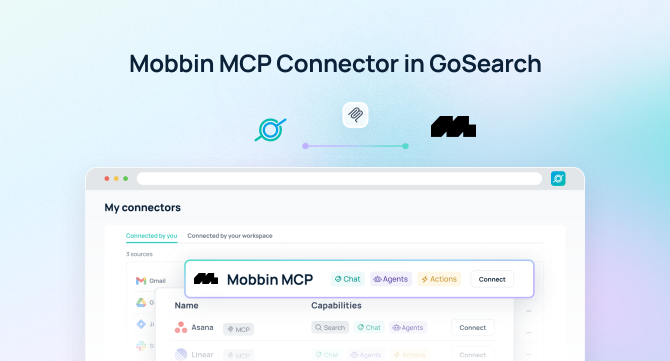

Quick Answer: The Mobbin MCP server uses the Model Context Protocol (MCP) to give compatible AI tools access to Mobbin’s library of real app screens, user flows, and website sections. It lets an AI agent search shipped products in plain language and return references that link back to Mobbin. GoSearch’s new Mobbin connector brings that library into GoSearch, so agents can combine real design references with your specs, tickets, brand guidelines, and customer feedback to research patterns, brief designers, and move product work forward.
TL;DR
- GoSearch now connects to Mobbin through the Model Context Protocol.
- The connection searches screens, multi-step flows, and website sections from shipped mobile and web products, and it reads your saved collections.
- Mobbin authenticates through OAuth, and GoSearch adds it as a connector alongside its other 100+ integrations.
- Mobbin MCP access requires a paid Mobbin plan.
- Product, design, engineering, and marketing teams can ground UI decisions in how real products solve the same problem.
- Agents can pair Mobbin references with specs, tickets, and feedback, then draft the brief or ticket in one place.
- All five Mobbin tools are read-only, so GoSearch reads from your Mobbin library and does not change it.
What Is a Mobbin MCP Server?
A Mobbin MCP server is a Model Context Protocol connection that lets AI applications search Mobbin directly. Mobbin is a design reference library of real screens, flows, and website sections from shipped products. Mobbin launched its MCP server in May 2026 with more than 600,000 screens available to AI tools. Instead of browsing the Mobbin site and saving screenshots by hand, an MCP-enabled AI agent can search the library on demand.
Mobbin’s MCP connection covers five read-only tools:
- Search Screens: Individual mobile and web UI screens, found with a plain-language description
- Search Flows: Ordered, multi-step journeys such as onboarding and checkout
- Search Sections: Website sections such as pricing, hero, and footer
- List Collections: The collections saved in your Mobbin account
- Get Collection Contents: The screens, flows, and sections inside a collection
Each search result names the app and links back to the source in Mobbin, so anyone on the team can open the full reference.
That turns Mobbin from a site people browse into a data source AI agents can query as part of a larger workflow.
Why Connect Mobbin to an AI Agent?
More people now make design decisions, and more of them use AI to do it. The AI in Design 2026 report from Designer Fund and Foundation Capital found that 91% of designers use AI at least weekly, up from 54% the year before. The same research found that 65% of designers do more product management and engineering work, and 40% say PMs and engineers do more design work. Design choices now involve product, engineering, and marketing as much as design.
AI tools generate interfaces fast. Without real references, the output tends to look generic. Mobbin makes that point in its launch announcement and built the MCP server so agents can pull proven patterns instead of guessing.
The Mobbin MCP connector becomes far more useful once it sits alongside context in GoSearch. Now, design references can be compared against:
- Product requirements and PRDs
- Brand and design system guidelines
- Tickets and sprint boards
- Customer feedback and support conversations
- Competitive research and positioning docs
- Roadmaps and launch plans
Rather than asking:
How do top apps design a paywall?
You can ask:
How do top apps design a paywall, and which of those patterns fit the pricing model in our spec?
The second question needs Mobbin’s references and the spec that defines what you plan to build. GoSearch has both, so it can answer the question a team actually needs answered.
Mobbin MCP Server vs. Manual Design Research
Without MCP, turning design references into a decision means moving between tools by hand.
A typical workflow looks like this:
Open Mobbin → search for examples → save screens → open the PRD → compare → write recommendations → create the ticket
With the Mobbin MCP connector and GoSearch, the workflow becomes:
Ask AI → search Mobbin → search company knowledge → compare → let AI draft the brief or ticket
The time saved is not just in finding examples. It is in skipping the cross-checking that used to come after.
Native Mobbin MCP Server vs. Mobbin in GoSearch
Mobbin publishes its own MCP server, so you can connect it to an AI client directly. Here is how that compares with connecting Mobbin through GoSearch.
| Native Mobbin MCP server | Mobbin in GoSearch | |
| Mobbin data | Screen, flow, and website section search, plus saved collections | All five Mobbin tools available in GoAI, agents, and workflows |
| Other company context | Mobbin only | 100+ connectors for specs, tickets, docs, and messages |
| Setup | Add the server URL to each AI client, then sign in with OAuth | Select Mobbin in the connector library and sign in |
| Where it runs | Each MCP client you configure | One connection shared across GoSearch |
| Write actions | None, all five tools are read-only | None in Mobbin. Agents can act in your other connected apps |
| Plan requirement | Paid Mobbin plan | Paid Mobbin plan |
| Best for | Pulling references into a single AI client or coding agent | Questions that combine design references with company knowledge |
When the native server is enough
If you want references inside one AI client while you build, such as Claude Code or Cursor, the native server does that well. GoSearch becomes the better fit when a question needs context from outside Mobbin, or when a whole team needs the same access without configuring each client individually.
How the Mobbin MCP Server Works
The Mobbin MCP connector exposes Mobbin’s library as five read-only tools that an AI agent can call directly.
A simple request might be:
“Show me onboarding flows from fintech apps.”
The agent searches Mobbin’s flows and returns examples with links back to the source.
A more advanced request might be:
“Find how three top subscription apps structure their pricing sections, then compare them against the pricing page brief.”
Now the agent needs Mobbin’s website sections and the brief that defines your goals. GoSearch supplies both, drawing the references from the Mobbin connector and the brief from wherever it lives, such as Notion, Confluence, or Google Drive.
Mobbin MCP Server Use Cases for Product and Design Teams
Design references often live in a planning board, while the requirements live in a doc. The gap shows up late, when someone asks why the flow ended up the way it did.
1. Research Patterns Before Designing
Ask:
“Find onboarding flows from habit-tracking apps and list where each one asks for signup.”
The agent searches flows and organizes the sequence of steps, so a designer starts with evidence instead of a blank canvas.
2. Ground a PRD in Real Examples
Ask:
“Review the checkout PRD, then find checkout flows from top retail apps and flag any steps our spec does not cover.”
Because GoSearch reads the PRD alongside Mobbin’s flows, the comparison does not depend on someone remembering what the spec says.
3. Brief Designers Faster
Ask:
“Find five settings screens with grouped toggles and draft a design brief that follows our design principles doc.”
That gives a designer real references and your own guidelines in a single starting point.
4. Turn Saved Collections Into Briefs
Ask:
“Open our ‘Checkout inspiration’ collection and summarize the common patterns across its screens.”
The agent reads the collection your team already curated, so research done once becomes reusable context.
Mobbin MCP Server Use Cases for Engineering Teams
Engineers often build screens without a designer in the loop. References help them make the same quality calls a designer would.
1. Check Patterns Before Building
Ask:
“Find permission request screens for location access and summarize the patterns before I build ours.”
The agent returns real examples, so the first version starts closer to what users already know.
2. Write Tickets With References Attached
Ask:
“Draft a ticket for the empty state redesign and include three reference screens from Mobbin.”
The agent pairs the references with the ticket, so the engineer who picks it up sees the intent and the examples together.
Mobbin MCP Server Use Cases for Marketing Teams
Website sections shape how buyers read a page. Marketers can study how other companies structure them without leaving their workflow.
1. Study Pricing and Landing Page Sections
Ask:
“Find pricing sections with three-tier comparison tables from B2B software sites and compare them to our current pricing page copy.”
Section search finds the examples, and GoSearch finds the copy, so the comparison covers both layout and message.
2. Run Competitive UI Research
Ask:
“Show how our competitors present their onboarding, and note where our positioning doc says we do it differently.”
The answer ties what competitors ship to what your team claims, which is where messaging gaps tend to show up.
3. Keep a Weekly Pulse on Patterns
Mobbin updates its library weekly. A GoSearch workflow can use that cadence. For example:
“Every Monday, search Mobbin for new pricing sections and post a short summary in the design channel.”
The workflow runs on a schedule, so the team sees fresh references without anyone remembering to look.
Mobbin MCP Server Prompts for Teams
Here are practical prompts once Mobbin is connected to GoSearch.
Product and Design
“Find onboarding flows from habit-tracking apps and list where each one asks for signup.”
“Show me five settings screens with grouped toggles.”
“Compare how two banking apps handle account verification.”
“List my Mobbin collections and summarize the one for onboarding.”
Engineering
“Find permission request screens for location access.”
“Show empty state screens from project management apps.”
“Draft a ticket for this redesign with three Mobbin references attached.”
Marketing
“Find pricing sections with three-tier comparison tables.”
“Show hero sections from developer tools.”
“Compare competitor onboarding flows against our positioning doc.”
Cross-Functional
“Compare checkout flows from top retail apps against our checkout spec.”
“Summarize the patterns across these flows and draft a recommendation for the product team.”
Combining Mobbin With Company Knowledge in GoSearch
The real value is not asking AI about Mobbin alone. It is combining those references with everything else your team already knows.
Imagine asking:
“Review the onboarding flows from top subscription apps, compare them against our onboarding spec and recent customer feedback, and draft a recommendation for the product team.”
That question needs several sources of context.
Mobbin provides:
- Screens from shipped mobile and web products
- Multi-step user flows
- Website sections
- Saved collections and their contents
- Links back to each reference
GoSearch provides access to:
- Product specs and PRDs
- Brand and design system guidelines
- Tickets and issue trackers
- Customer feedback and support history
- Competitive research and positioning docs
- Internal communication
- Other connected business systems
GoSearch connects those sources so the agent can answer the full question, not just the part Mobbin covers on its own.
How to Connect the Mobbin MCP Server to GoSearch
Connecting Mobbin takes a few steps and about five minutes.
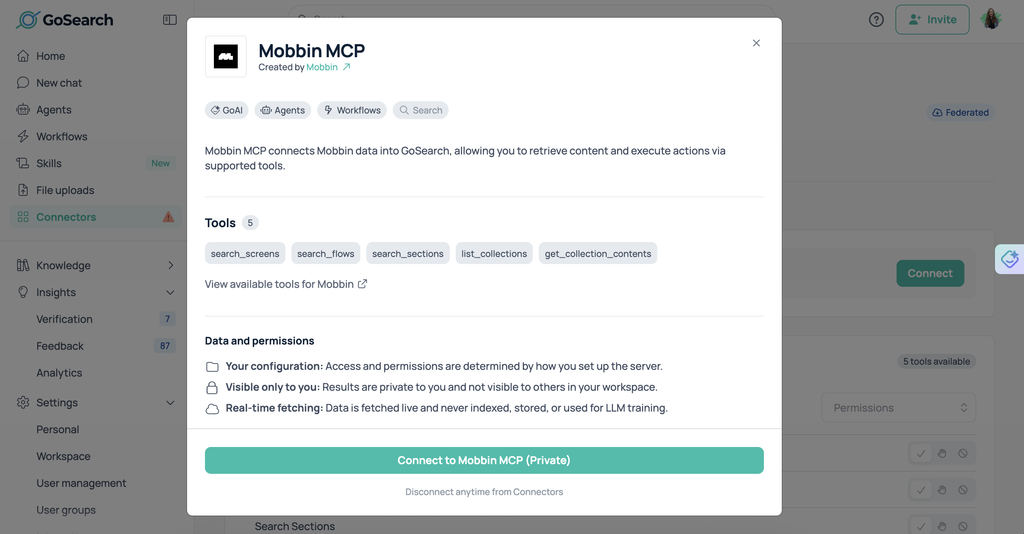
1. Find Mobbin in GoSearch’s connector library
Open GoSearch’s connectors page and select Mobbin from the list of 100+ available integrations.
2. Click to connect
Select Connect and you’ll be redirected to Mobbin to sign in.
3. Authenticate with Mobbin
Sign in with your paid Mobbin account and approve the connection. This authorizes GoSearch to search Mobbin on your behalf without any API keys to generate or copy.
4. Start querying Mobbin through GoSearch
Once connected, Mobbin’s five read-only tools become available to GoSearch agents and workflows alongside your other connected systems.
Why Use GoSearch With the Mobbin MCP Server?
Mobbin shows how other products solve a problem. It does not know your requirements, your brand, or your customers. GoSearch fills that gap.
GoSearch connects Mobbin to the rest of your company’s knowledge through the same platform: over 100 connectors covering specs, tickets, design docs, customer feedback, and internal communication. A question like “which of these checkout patterns fit our spec?” pulls the references from Mobbin and the requirements from wherever your spec lives, in one answer instead of two lookups.
Because the connector queries Mobbin directly, results reflect the library as it stands today. And because GoSearch agents and workflows can act on what they find, a product manager can go from a research question to a drafted brief or ticket without leaving the conversation.
Your specs and roadmaps are sensitive, so security matters. GoSearch is SOC 2 Type II and GDPR compliant, and access to your company knowledge follows the permissions set in each source tool.
Mobbin shows what good looks like. GoSearch turns it into an answer, and often a next step.
Who Should Use the Mobbin MCP Server?
Product and Design Teams
Research patterns before designing, ground specs in real examples, and brief designers faster.
Engineering Teams
Check patterns before building and attach references to tickets.
Marketing Teams
Study pricing and landing page sections, and compare competitor UI against your positioning.
Product Managers
Turn scattered references into a clear recommendation backed by your own requirements.
Mobbin MCP Server: From Design References to Team Decisions
The Mobbin MCP server gives AI agents access to the screens, flows, and website sections of real shipped products.
On its own, that library answers narrow questions about how other products look. Connected to GoSearch, it answers bigger ones, because the agent can combine those references with specs, tickets, brand guidelines, and customer feedback.
That means your AI agent does not just know what good design looks like. It can explain which patterns fit your product, why, and what to do next.
Mobbin shows what great products ship. GoSearch helps turn it into action. Schedule a demo to learn how GoSearch integrates with Mobbin and other enterprise tools.
Search across all your apps for instant AI answers with GoSearch
Schedule a demo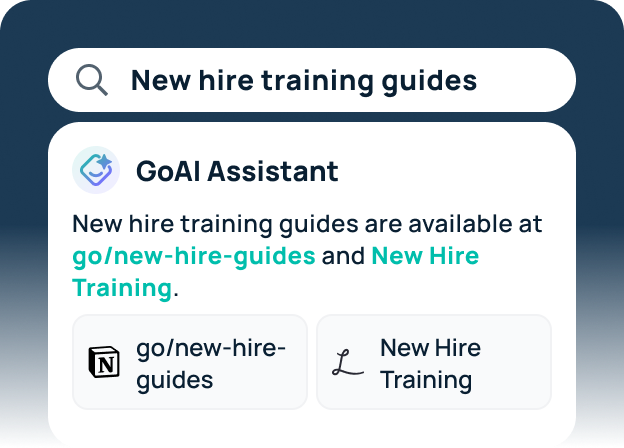
Mobbin MCP Server FAQs
What is a Mobbin MCP server?
A Mobbin MCP server connects compatible AI applications to Mobbin through the Model Context Protocol. It lets AI agents search real screens, multi-step flows, and website sections from shipped mobile and web products using plain language. Agents get references back instead of generic guesses. Mobbin publishes its own server, and GoSearch adds Mobbin as a connector so teams can combine those references with their own company knowledge.
What can the Mobbin MCP connector do?
The connector offers five read-only tools. Three search Mobbin: Search Screens finds individual mobile and web UI screens, Search Flows finds multi-step journeys such as onboarding and checkout, and Search Sections finds website sections such as pricing and hero. Two work with saved collections: List Collections shows what your account has saved, and Get Collection Contents opens a collection. Because every tool is read-only, the connector never changes your Mobbin library.
How do you connect Mobbin to GoSearch?
Select Mobbin from GoSearch’s connector library, then click Connect. You sign in to Mobbin and approve access, with no API keys to generate or manage. Once approved, Mobbin searches become available to GoSearch agents and workflows, and GoSearch queries Mobbin directly when someone asks a question. The process takes about five minutes from start to first question.
Do you need a paid Mobbin plan to use the connector?
Yes. Mobbin offers MCP access on its paid plans, so the account you sign in with needs one. GoSearch connects through that account when you authorize Mobbin. Teams without a paid plan can review Mobbin’s current plans and pricing on its site, then connect Mobbin to GoSearch once the account is ready.
Why connect Mobbin to GoSearch instead of using the native server alone?
The native server gives one AI client access to Mobbin’s library. GoSearch adds everything else: product specs, tickets, brand guidelines, customer feedback, and internal messages. That lets an agent compare real design references against your requirements, then draft the brief or ticket in the same place. It also gives a whole team the same access without configuring each client individually.