


Quick Answer: The Clockify MCP server uses the Model Context Protocol (MCP) to give compatible AI clients access to Clockify’s time tracking data. It exposes time entries, projects, tasks, clients, tags, and reporting data from a connected workspace. GoSearch’s new Clockify connector brings that data into GoSearch, so AI agents can combine time tracking with the rest of your company knowledge to answer questions about project hours, team capacity, and billable work.
TL;DR
- GoSearch now connects to Clockify through the Model Context Protocol.
- The connection surfaces time entries, projects, tasks, clients, tags, and reports.
- Clockify authenticates through an API key, and GoSearch adds it as a connector alongside its other 100+ integrations.
- Teams can ask GoSearch about project hours, billable time, capacity, and utilization in plain language.
- Project managers can combine time data with project docs, tickets, and client communication.
- Finance and ops teams can turn time entries into billing and utilization reports without exporting spreadsheets.
- The result is a workflow that moves from time data to team action in one place.
What Is a Clockify MCP Server?
A Clockify MCP server is a Model Context Protocol connection that lets AI applications interact directly with Clockify. Instead of opening Clockify and manually pulling a report, an MCP-enabled AI agent can query Clockify’s data on demand.
Clockify’s MCP connection covers several areas of a workspace:
- Time entries: Logged hours, descriptions, and time ranges by user and project
- Projects and tasks: Project status, task breakdowns, and time spent per task
- Clients: Client-level time and billing data
- Tags: Custom tags used to categorize work
- Reports: Summary, detailed, and weekly reporting views
- Users: Workspace members and their roles
That turns Clockify from a tool people check into a data source AI agents can query as part of a larger workflow.
Why Connect Clockify to an AI Agent?
Time tracking data rarely answers a question by itself. Knowing that a project logged 40 hours last week doesn’t tell you whether that’s on budget, whether the client was billed correctly, or whether the team has room for new work.
Answering those questions usually takes more than Clockify:
- Project plans and scope documents
- Client contracts and statements of work
- Sprint boards and tickets
- Sales and account context
- HR and capacity data
- Internal messages about project status
The Clockify MCP connector becomes far more useful once it sits alongside that context in GoSearch, instead of standing alone.
Rather than asking:
How many hours did we log on this project?
You can ask:
Is this project on track against the scope we agreed to, and which tasks are eating the most time?
The second question needs Clockify’s time entries and the scope document that defines what “on track” means. GoSearch has both, so it can answer the question a manager actually cares about, not just the one Clockify can answer on its own.
Clockify MCP Server vs. Traditional Time Tracking Workflows
Without MCP, checking time tracking against project reality usually means moving between tools by hand.
A typical workflow looks like this:
Open Clockify → run a report → export to a spreadsheet → check the project plan → check the contract → summarize for the client or team
With the Clockify MCP connector and GoSearch, the workflow becomes:
Ask AI → query Clockify → search company knowledge → analyze → recommend next steps
The time saved is not just in pulling the report. It is in skipping the manual cross-referencing that used to come after.
How the Clockify MCP Server Works
The Clockify MCP connector exposes Clockify data as tools that an AI agent can call directly.
A simple question might be:
“How many hours did the design team log on the Acme project this month?”
The agent retrieves the relevant time entries and summarizes them.
A more advanced question might be:
“Compare hours logged against the Acme statement of work, and flag any tasks that are over budget.”
Now the agent needs Clockify’s time data and the contract that defines the budget. GoSearch supplies both, drawing the time data from the Clockify connector and the contract from wherever it lives, such as Drive, Notion, or email.
Clockify MCP Server Use Cases for Project Management
Most projects don’t go over budget all at once. They drift a few hours at a time until the overage shows up during the client call or the invoice review. Catching that drift earlier means checking logged hours against scope more often than most PMs have time to do by hand.
1. Track Project Hours Against Scope
Ask:
“Which active projects have logged more than 80% of their budgeted hours?”
Because GoSearch can read the scope document alongside the time entries, the answer accounts for what was actually budgeted, not just what was logged. That gives a manager time to flag the risk before it becomes an overage.
2. Break Down Time by Task
Ask:
“Which tasks on the Acme project are taking the most time, and does that match what we scoped?”
This surfaces scope creep as soon as it starts, instead of three weeks in, when a “simple” task has quietly consumed a third of the project’s hours.
3. Check Team Capacity
Ask:
“Who on the team has the most available capacity this week based on logged hours?”
Logged hours across the team answer that directly, without a round of Slack messages asking who’s slammed.
Clockify MCP Server Use Cases for Finance
Billing errors are rarely intentional. They happen because time entries, contract terms, and invoices live in three different places, and reconciling them by hand is tedious enough to get skipped until something goes wrong.
1. Turn Time Entries Into Billing Summaries
Ask:
“Summarize billable hours by client for last month.”
The agent pulls and organizes time entries by client without anyone exporting a spreadsheet.
2. Reconcile Time Against Contracts
Ask:
“Compare logged time against the retainer hours in our contract with this client, and flag any overage.”
GoSearch can read the contract terms alongside Clockify’s numbers, so the check doesn’t depend on someone remembering the retainer cap.
3. Spot Under-Billed Work
Ask:
“Which clients have logged billable hours that haven’t shown up on an invoice yet?”
That gap is easy to lose track of. Surfacing it on request turns a routine time-tracking check into a recurring revenue safeguard.
Clockify MCP Server Use Cases for HR and People Ops
Utilization and workload data usually lives in a report someone pulls once a quarter, by which point the trend it would have caught has already played out.
1. Monitor Utilization Across Teams
Ask:
“What is our average utilization rate by team this quarter?”
GoSearch can generate that report on request, current as of the latest logged hours, instead of waiting for the quarterly pull.
2. Flag Overwork Early
Ask:
“Which team members have logged over 45 hours in each of the last three weeks?”
A pattern like that is worth a conversation long before it shows up as a resignation or a burnout complaint.
Clockify MCP Server Prompts for Teams
Here are practical prompts once Clockify is connected to GoSearch.
Project Management
“Which projects are over their budgeted hours this month?”
“How much time have we logged on this project by task?”
“Who has capacity to take on new work this week?”
Finance and Billing
“Summarize billable hours by client for last month.”
“Which clients are approaching or over their contracted hours?”
“Which logged time hasn’t been invoiced yet?”
HR and People Ops
“What is our team’s average utilization this quarter?”
“Which team members have logged unusually high hours recently?”
Cross-Functional
“Compare time logged on this project against the original scope document.”
“Summarize this client’s time and billing history for the renewal conversation.”
Combining Clockify With Company Knowledge in GoSearch
The real value is not asking AI about Clockify data alone. It is combining that data with everything else your team already knows.
Imagine asking:
“Review time logged on the Acme project this quarter, compare it against the statement of work, and draft a summary for the client check-in.”
That question needs several sources of context.
Clockify provides:
- Time entries
- Projects and tasks
- Client and billing data
- Reports
GoSearch provides access to:
- Contracts and statements of work
- Project documentation
- Sales and account history
- Internal communication
- Other connected business systems
GoSearch connects those sources so the agent can answer the full question, not just the part Clockify covers on its own.
How to Connect the Clockify MCP Server to GoSearch
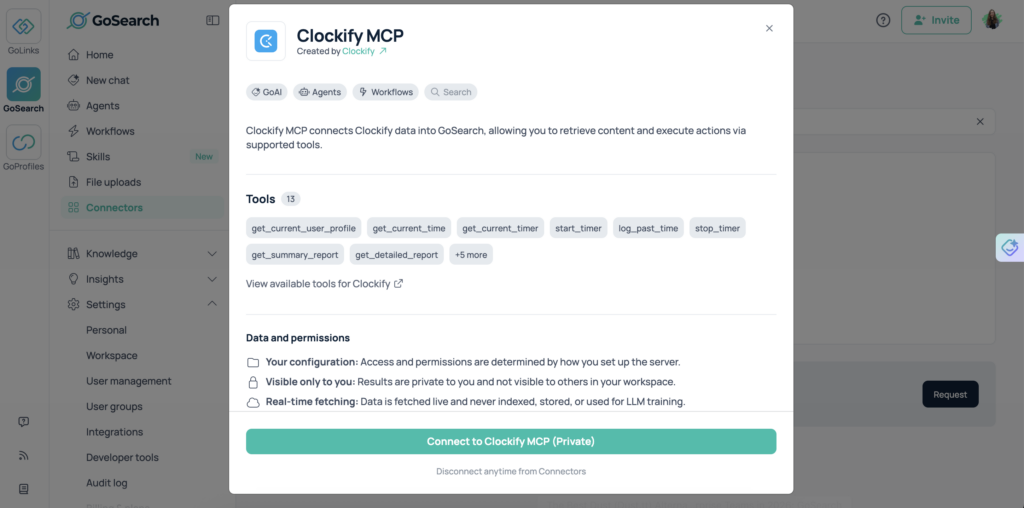
Connecting Clockify takes a few steps and about two minutes.
1. Find Clockify in GoSearch’s connector library
Open GoSearch’s connectors page and select Clockify from the list of 100+ available integrations.
2. Click to connect
Select Connect and you’ll be redirected to Clockify to sign in.
3. Authenticate with Clockify
Approve the connection from your Clockify account. This authenticates GoSearch to access the workspace without any keys to generate or copy.
4. Start querying Clockify through GoSearch
Once connected, Clockify’s time tracking data becomes available to GoSearch agents and workflows alongside your other connected systems.
Why Use GoSearch With the Clockify MCP Server?
Clockify tracks time. It doesn’t know what a client contract says, what a project plan promises, or what your team already told a customer about status. GoSearch fills that gap.
GoSearch connects Clockify to the rest of your company’s knowledge through the same platform: over 100 connectors covering contracts, project docs, tickets, and internal communication. That means a question like “is the Acme project on budget?” pulls logged hours from Clockify and the contracted budget from wherever that document lives, in one answer instead of two lookups.
Because GoSearch retrieves data in real time rather than from indexed snapshots, the numbers reflect what’s in Clockify right now, not a stale export. And because GoSearch’s agents and workflows can act on what they find, a project manager can go from a status question to a drafted client update without leaving the conversation.
Clockify shows you the time data. GoSearch turns it into an answer, and often a next step.ent workflow.
Who Should Use the Clockify MCP Server?
Project Managers
Track hours against scope, break down time by task, and catch budget overruns early.
Finance and Operations Teams
Turn time entries into billing summaries and reconcile logged time against contracts.
People and HR Teams
Monitor utilization and catch overwork trends before they become retention problems.
Client Services and Account Teams
Pull time and billing history together for renewal conversations and client check-ins.
Leadership
Get a single view of where team time goes without waiting on a manual report.
Clockify MCP Server: From Time Data to Team Action
The Clockify MCP server gives AI agents access to the time tracking data teams already rely on: entries, projects, tasks, clients, and reports.
On its own, that data answers narrow questions. Connected to GoSearch, it answers bigger ones, because the agent can combine time data with contracts, project plans, and the rest of your company knowledge.
That means your AI agent doesn’t just know how many hours were logged. It can explain whether that matches the plan, what it means for billing, and what to do next.
Clockify measures how your team’s time is spent. GoSearch helps turn that into action.
Search across all your apps for instant AI answers with GoSearch
Schedule a demo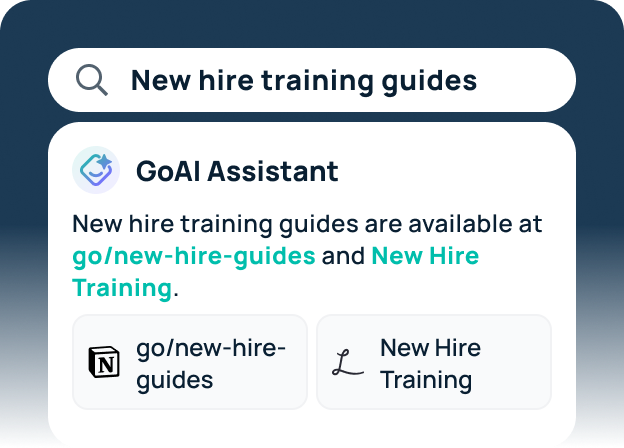
Clockify MCP Server FAQs
A Clockify MCP server connects compatible AI applications to Clockify through the Model Context Protocol. It gives AI agents access to time entries, projects, tasks, clients, tags, and reports from a connected Clockify workspace, so agents can query time tracking data directly instead of requiring a manual export.
The connector surfaces time entries, project and task data, client information, tags, workspace users, and Clockify’s reporting views. This covers most of what a team would otherwise pull manually through Clockify’s dashboard or a scheduled export.
Select Clockify from GoSearch’s connector library, then click Connect. You’ll be redirected to Clockify to sign in and approve access, with no API keys to generate or manage. Once approved, Clockify’s time data becomes available to GoSearch’s agents and workflows within minutes.
Yes. Teams can ask GoSearch to summarize billable hours by client, reconcile logged time against contracted hours, and flag work that has not yet been invoiced, combining Clockify’s time data with contracts stored elsewhere.
Clockify’s reports show what happened inside Clockify. GoSearch adds everything else: contracts, project plans, client communication, and other business systems. That lets an AI agent explain not just how much time was logged, but whether it matches the plan and what to do about it.