


Some of the most useful knowledge at work never makes it into a polished document. It lives in meeting notes, brainstorm pages, runbooks, and project logs that people keep in OneNote. Those notes hold the context behind decisions, the details from customer calls, and the steps your team actually follows.
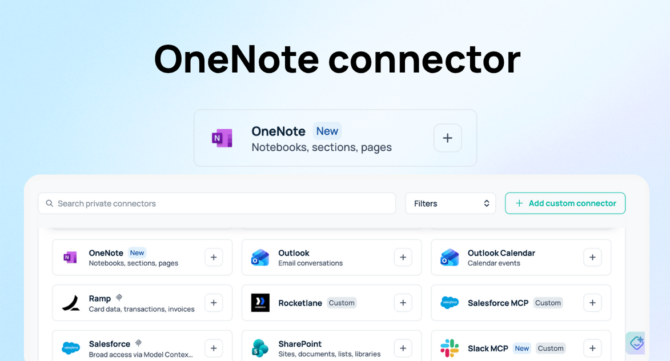
GoSearch now connects to OneNote, so that context shows up where you already work. You can use it in GoAI, agents, workflows, and search. This post covers what the connector does, which eight tools it supports, and when you should bring your notes into your enterprise AI workflows.
Quick answer: The GoSearch OneNote connector brings your notebooks, sections, and pages into GoAI, agents, workflows, and search. It uses eight read-only tools to find and read OneNote content, so your AI answers draw on the meeting notes, project plans, and working knowledge your team already keeps. Bring OneNote into an AI workflow when the answer depends on what someone wrote down, such as meeting prep, onboarding, customer follow-ups, and project handoffs.
What is the GoSearch OneNote connector?
The GoSearch OneNote connector lets GoSearch read the content in your Microsoft OneNote notebooks. It works across four surfaces: GoAI, agents, workflows, and search. Search results match on notebooks, sections, and pages, so one query can surface a whole notebook or a single page.
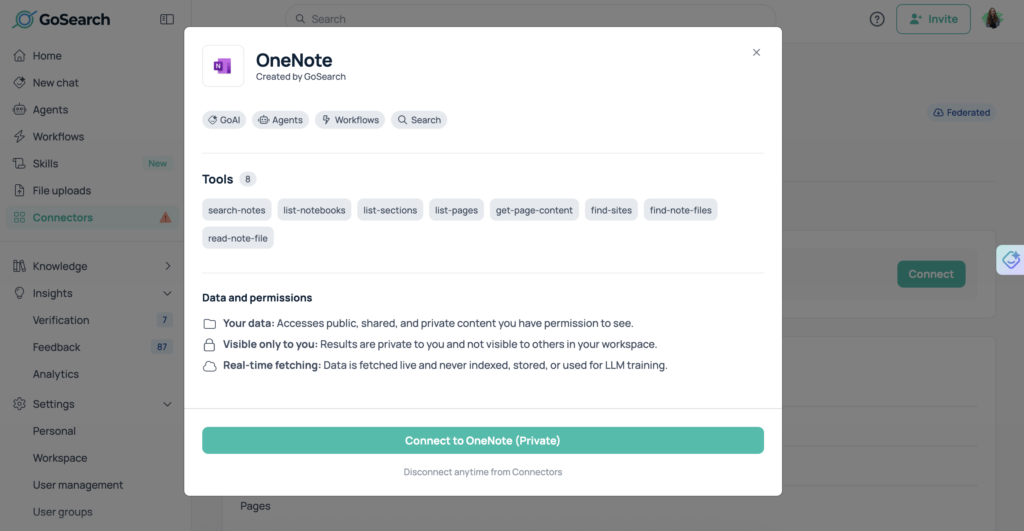
The connector supports eight read-only tools. GoSearch reads your notes and never changes them.
Why does OneNote context matter for enterprise AI?
AI answers are only as good as the context behind them. Notes capture the reasoning that formal documents leave out. They record why the team chose a vendor, what the customer asked for on the last call, and which fix finally worked.
Most teams already use AI, but few have connected it to the context they work from. Atlassian’s 2026 State of Teams survey of 12,035 knowledge workers found that 85% use AI at work, but only 29% have embedded it in their flows of work. Your notes are part of the missing context. When GoSearch connects to OneNote, GoAI, agents, and workflows can draw on your notes alongside content from your other tools.
What tools does the connector support?
The GoSearch OneNote tools split into two jobs. Discovery tools map what exists. Retrieval tools read it.
Discovery tools
- List notebooks: Show the notebooks available to you.
- List sections: Show the sections inside a notebook.
- List pages: Show the pages inside a section.
- Find sites: Locate the sites that host your notebooks.
- Find note files: Locate note files across those sites.
Retrieval tools
- Search notes: Find notes that match a query.
- Get page content: Retrieve the content of a page.
- Read note file: Read the contents of a note file.
Together, these tools let GoAI or an agent move from a broad question to the exact page. It can search for a topic, open the matching page, and read what you wrote.
When should you bring OneNote context into your AI workflows?
Bring OneNote into an AI workflow when the answer depends on what someone wrote down. Here are five examples you can apply today.
Before a meeting or customer call. An agent can read prior meeting notes and summarize open items, decisions, and next steps before you join.
During onboarding. New hires can ask GoAI how the team handles a process and get an answer drawn from the team notebook.
After a customer conversation. A workflow can read your call notes and help draft a follow-up that reflects what the customer said.
At project handoffs. When a project changes owners, GoAI can summarize the notebook so the new owner sees past decisions and open questions.
When troubleshooting. Engineering and IT teams can search runbooks and past incident notes for a fix that worked before.
OneNote is not the right source for every question. For official policy or final specifications, point your AI to the system of record. Notes work best for working context, and GoSearch can combine both in one answer.
Benefits by team
- Sales: Prepare for calls with past meeting notes and account context.
- Customer success: Recall what customers asked for and what you promised.
- Engineering and IT: Find runbooks and troubleshooting notes faster.
- Program and project managers: Turn project notebooks into status updates.
- HR and enablement: Answer onboarding questions from team notebooks.
How do you use OneNote in GoAI, agents, workflows, and search?
- Search: Find notebooks, sections, and pages from the same search bar you use for every other connected tool.
- GoAI: Ask questions in plain language and get answers grounded in your notes.
- Agents: Give an agent OneNote tools so it can look up notes as part of a task.
- Workflows: Add a step that reads notes before a drafting or summarizing step. A weekly status workflow, for example, can read your project notebook and summarize progress.
How do you get started?
Connect OneNote from the connector settings in GoSearch and sign in with your Microsoft account. Run a search for a topic you know is in your notes. Then ask GoAI a question about it. When the results look right, add OneNote to an agent or a workflow.
Want to see it in action? Book a GoSearch demo.
Search across all your apps for instant AI answers with GoSearch
Schedule a demo
Frequently Asked Questions
Yes. GoSearch search results match on OneNote notebooks, sections, and pages, so a query can surface a whole notebook, a specific section, or a single page. Results appear alongside content from your other connected tools. You do not need to open OneNote first to find a note. Search once in GoSearch and review everything relevant across your stack. This helps when you remember the topic of a meeting but not where you wrote it down.
Yes. The OneNote connector works in GoAI, agents, workflows, and search. In GoAI, you can ask questions grounded in your notes. In agents and workflows, the eight read-only tools let automations find and read OneNote content as one step in a larger process, such as drafting a meeting brief or a customer follow-up. You build the process once, and it reads current notes each time it runs.
No. The GoSearch OneNote connector uses eight read-only tools, so GoSearch can search, list, and read your OneNote content but cannot create, edit, or delete it. Your notebooks stay the source of truth. Teams get grounded AI answers and summaries from their notes while the notes themselves remain untouched in OneNote. If you want to add information to a notebook, you still do that directly in OneNote.
No. GoSearch does not index or copy OneNote content into its own search index. OneNote is a federated connector, which means GoSearch queries Microsoft OneNote when you search or run an AI workflow, then retrieves relevant notebooks, sections, pages, or note files in real time. The connector uses eight read-only tools to discover and retrieve content. Your notes remain in OneNote, and GoSearch respects the permissions already configured in Microsoft 365. It can search and read content, but it cannot create, edit, or delete your notes.
Yes. GoSearch respects the permissions in your source tools, so people only see OneNote content they already have access to. Notebook sharing continues to work through Microsoft 365 as it does today. That keeps private notes private while still letting teams bring shared notebooks into AI answers, agents, and workflows. Your existing access rules stay in place across every surface where the connector runs.
Teams that capture working knowledge in notes see the most value. Sales and customer success teams use meeting and account notes. Engineering and IT teams use runbooks and troubleshooting logs. Program managers use project notes and decision records. Anyone who takes notes in OneNote can ask GoAI a question and get an answer grounded in what they wrote down. Shared team notebooks help most, because many people benefit from the same context.